
This is an article for our legacy Tablo Roku app. The 4th Generation Tablo is currently our most advanced offering.
NOTE - Legacy Tablo apps, including this Roku App, will no longer be available for download starting September 1st. Many of the underlying technologies used by legacy Tablo apps and services are becoming obsolete and are no longer maintainable. This is why we are discontinuing support for all legacy Tablo apps on September 1st, 2026.
Roku Remote Shortcuts Using the Tablo App
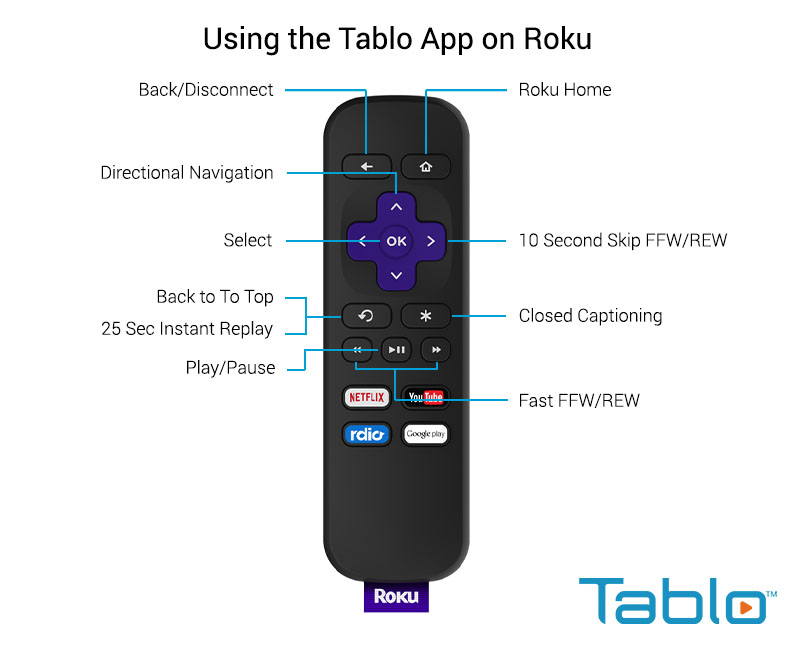
The Tablo channel is available in the Roku channel store under the TV & Movies category. The legacy Tablo app is supported on all current-generation Roku devices.
It is not possible to use Tablo Connect (our out-of-home streaming feature) via the Roku app.
Table of Contents
- Connect to Your Tablo
- Live TV Screen
- Recordings Screen
- TV Shows Screen
- Scheduling a Recording
- Scheduled Screen
Connect to Your Tablo
Select the Tablo channel and then select the Tablo you want to connect to. Users with only one Tablo should only have a single device in the list.
Once you have connected to your Tablo, you will be brought to the Tablo Roku channel home screen.
On the home screen you will see links to the sections available within the Roku app including: Live TV, Recordings, TV Shows, Movies, Sports and Scheduled Recordings.
Live TV Screen
The Live TV screen displays a list of programs that are currently playing on your available channels.
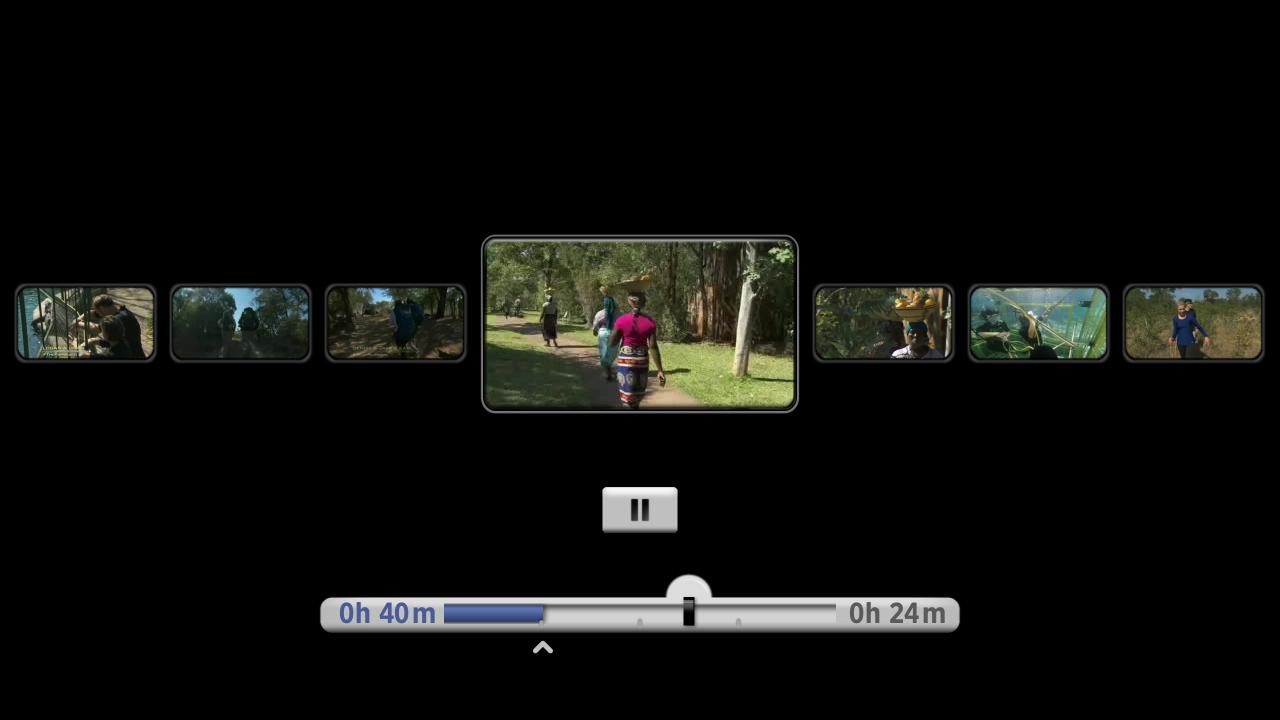
Selecting a show from the list will launch the video player. Once the video is playing, the pause and rewind controls are available.
Recordings Screen
The Recordings screen provides access to all of your previously recorded programs. Recordings can be sorted by air date, genre, popularity and alphabetically.
When you select a recording to watch, a synopsis of the series is displayed.
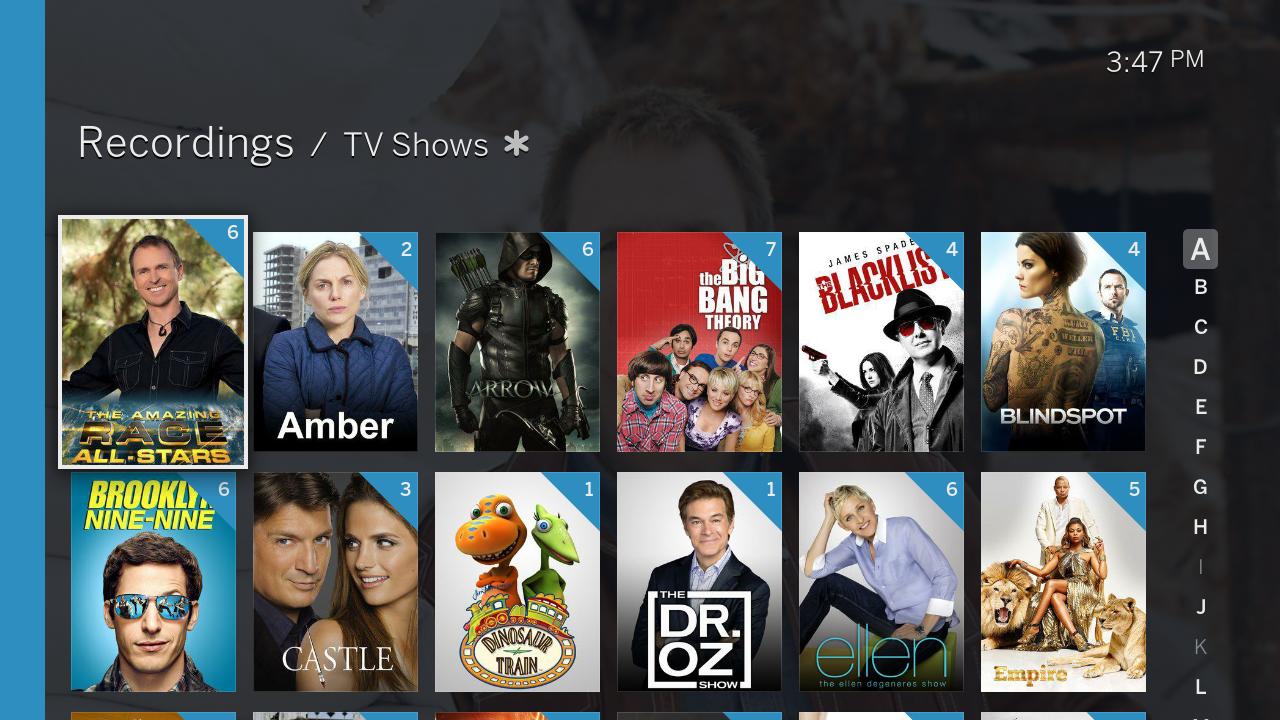
Selecting episodes will bring you to the list of previously recorded episodes for that series.
Once you have selected an episode, you will be prompted to either select Play, Read More (the synopsis) or Delete (for deleting the recording).
TV Shows Screen
The TV shows screen will show you all TV shows coming up within the next 14 days. The list is sorted alphabetically and the alphabetic axis on the right-hand side of the screen can be used for faster scrolling.
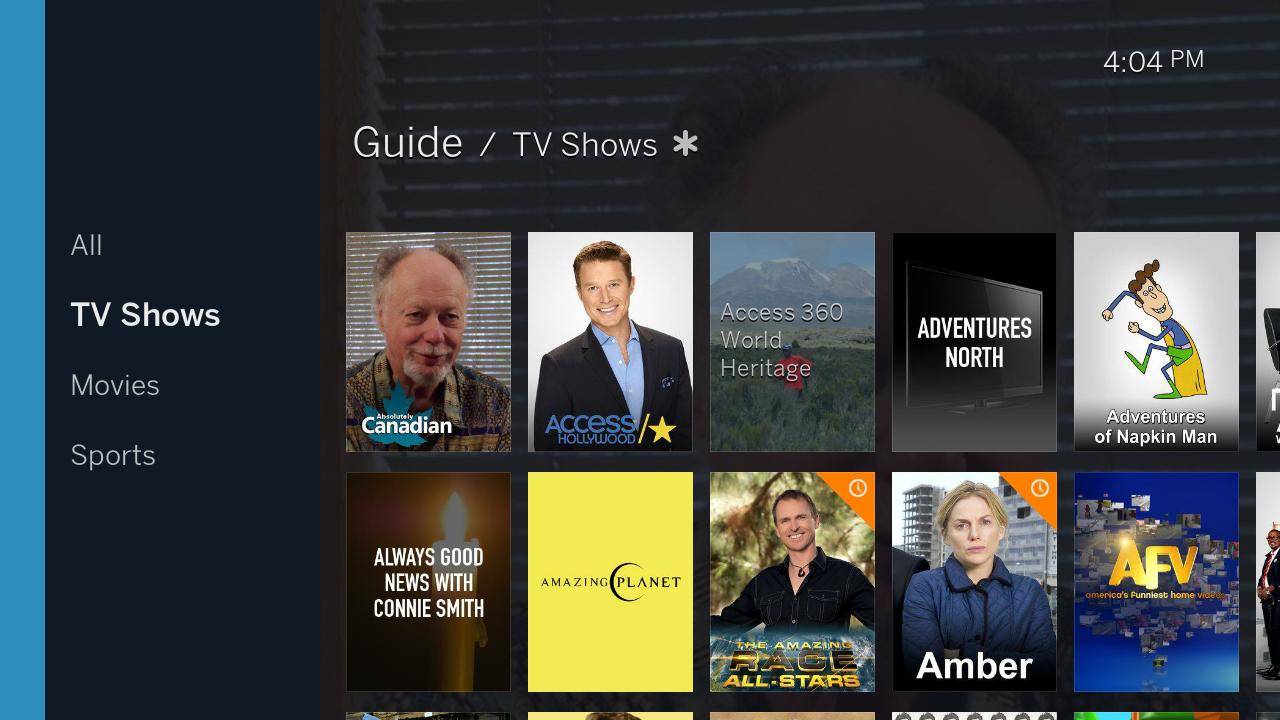
This screen can also be used to filter between: Primetime, Movies, Sports and All. Each of these screens will display their respective filter for the next 14 days of upcoming guide data.
Users who do not have a TV Guide Data Service subscription, will only see 24 hours of data.
Scheduling a Recording
When you select a program to record, you will have a choice to view the episodes pending to air (within the next 14 days), the option to record all future episodes or the option to only record future new episodes.
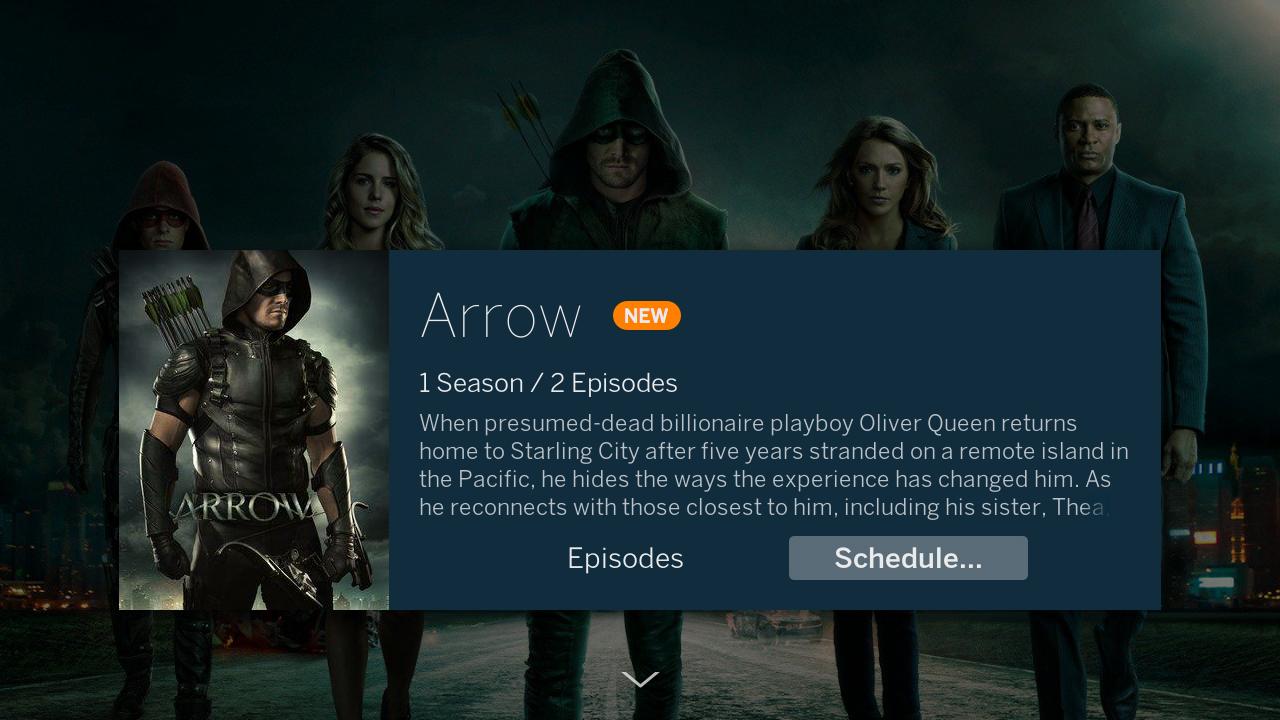
Users without a TV guide data service subscription will only be able to schedule recordings 24-hours in advance. That is, unless they set up their recordings manually.
Scheduled Screen
From this screen you can view all of your pending recordings. Scheduled recordings are sorted by air date.
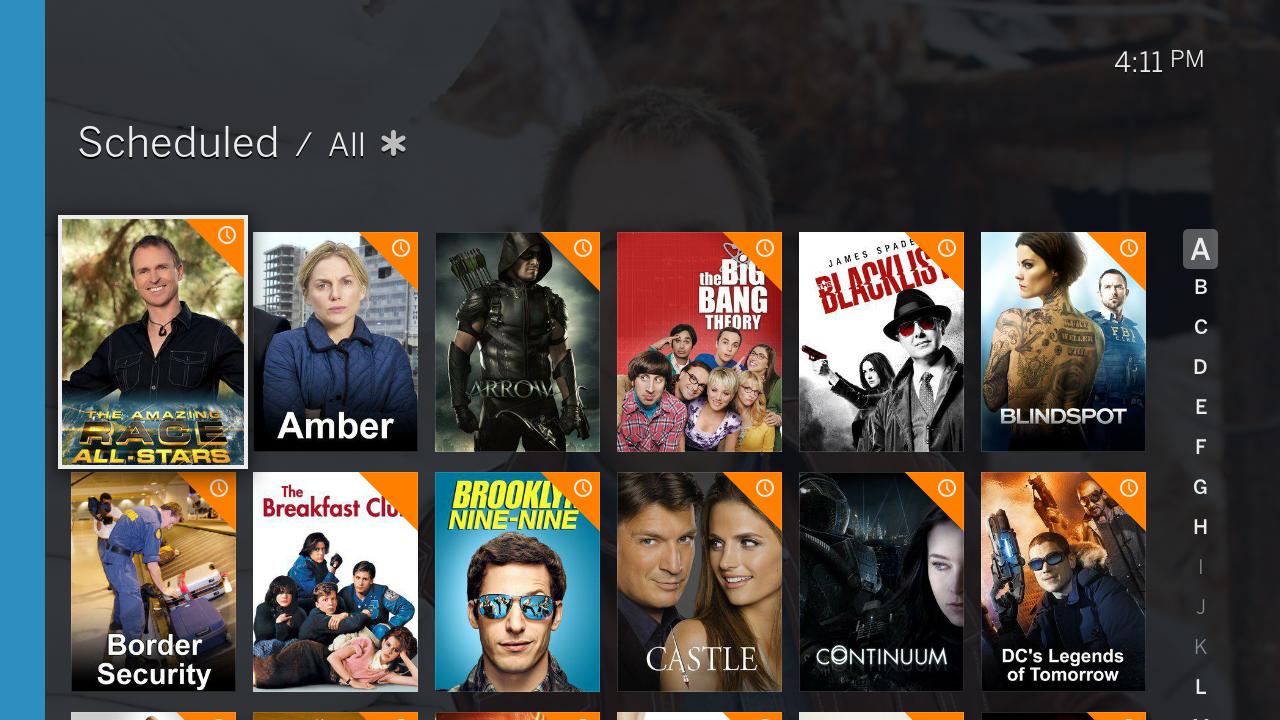
When you select a recording, you have the option to unschedule the recording and schedule additional new recordings for that show.