
One of the primary functions of the 4th Generation Tablo is the ability to watch live over-the-air (OTA) TV and streaming channels across a variety of compatible devices.
Keep reading to learn how to enjoy live TV with Tablo.
Table of Contents
- Browsing Live TV
- Starting Playback
- Playback Controls
- Pausing Live TV
- Troubleshooting Live TV Viewing
Browsing Live TV
From the HOME SCREEN of the Tablo app, select the LIVE TV icon from the side menu.
This will bring you to the Live TV Grid. Here you can browse what's airing now and over the next 14 days.
You can make your browsing more efficient by using one of several Live TV screen views found in the Guide Options button in the top left of the grid.
This will allow you to browse your live channels by CATEGORY, including local networks, RECENT channels, FAVORITES or even skip ahead several days using the DAY filter.
Starting Playback
Selecting a channel from the far left of the Live TV Grid will immediately start playback of that channel.
Selecting a program in the Live TV Grid, rather than a channel, will bring you to the program details page. Here you can read episode and series information, add the program's channel to your favorites and set recording options.
If the program you selected from the grid is currently airing, you can select WATCH LIVE to start watching it.
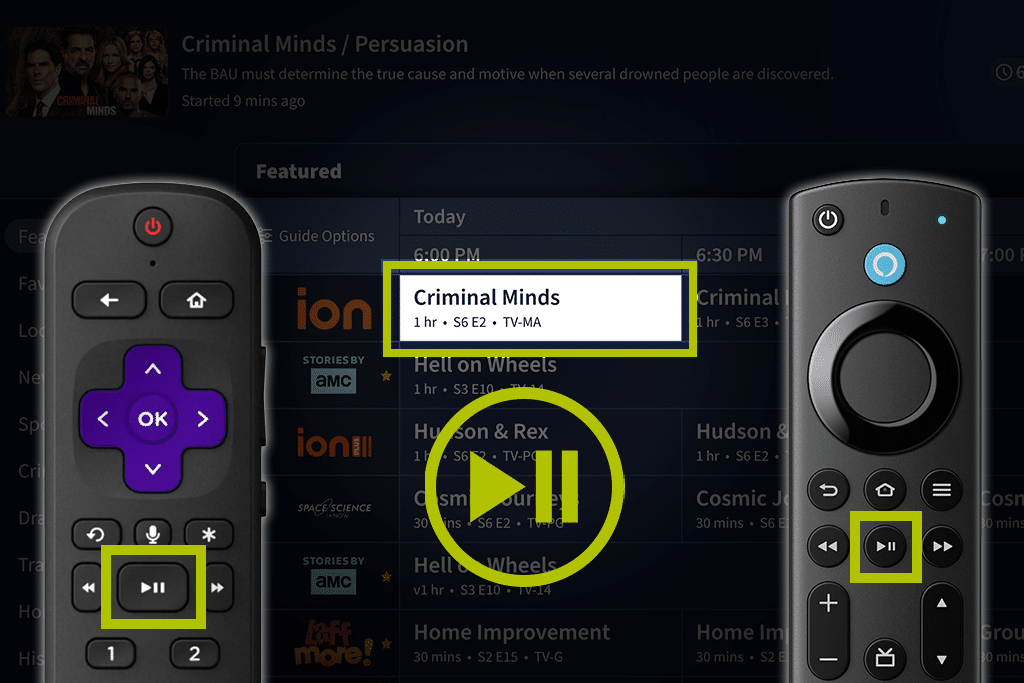
If you'd rather skip this secondary screen and play the program immediately, use the PLAY button on your smart TV or streaming device's remote instead of the ENTER/OK button.
Playback Controls
Within the playback window, you can use your smart TV or streaming device's remote to pause and rewind your live TV program.
After pausing or rewinding, you can select GO LIVE to skip forward to the part of the program airing currently, or fast-forward up to that point.
Select down on the directional pad of your remote to bring up the In-Player Content Tray for more channel surfing options, including the last channel button, what's airing on other channels and what's airing next.
You can also watch in-progress recordings (AKA 'tape delay' or 'time-shifted' recordings) with the 4th Generation Tablo. Playback will start at the beginning of the program on most platforms, though there are some limitations with Apple TV and mobile devices.
When watching an in-progress recording, you will automatically be returned to the Guide after the show has finished recording. This is because releasing the tuner is part of the process of completing a recording.
Pausing Live TV
When you start watching a live TV channel through your Tablo, that content is temporarily stored on your Tablo's hard drive. This buffer enables you to pause, rewind and even fast-forward content within that channel's buffer.
If you pause a live program and leave it paused for over an hour, you may find that the pause point location has been reset.
As you watch a channel, the buffer will continue to grow until it includes approximately one hour of video. At that time, older video segments will expire and be deleted to make way for newer ones.
If your paused point is within the expired section of the buffer, it will be reset to the first point in the current buffer.
Pause length and buffers can also be affected by the onboard memory of the streaming device or smart TV. You do not need to worry about this buffer if you're watching an in-progress recording.
Troubleshooting Live TV Viewing
If you encounter issues when watching Live TV on your Tablo, here are some troubleshooting steps to try.
-
Pixelation or Failure To Play Live TV
If your screen is pixelated or if you consistently encounter Playback Failed errors, it's likely due to interference or reception issues with your TV antenna. To resolve this, you may need to improve your TV antenna setup.
-
Buffering
If your live TV viewing is often interrupted by pauses to buffer (spinning circles) or an error saying it's taking longer to connect to your Tablo, it's likely due to a slowdown on your home Wi-Fi network. This can occur even if you have very fast external internet speeds and if other internet-based streaming apps are working as expected. In rare cases, it could also be caused by failing internal or external storage. There are steps you can take to troubleshoot this issue.
-
Audio Sync
If your audio is out of sync with your video, it's likely due to small errors in the broadcast TV stream. These errors can be so tiny that the video appears perfect, but they're enough to push the audio out of sync. To resolve it, troubleshoot your TV reception.